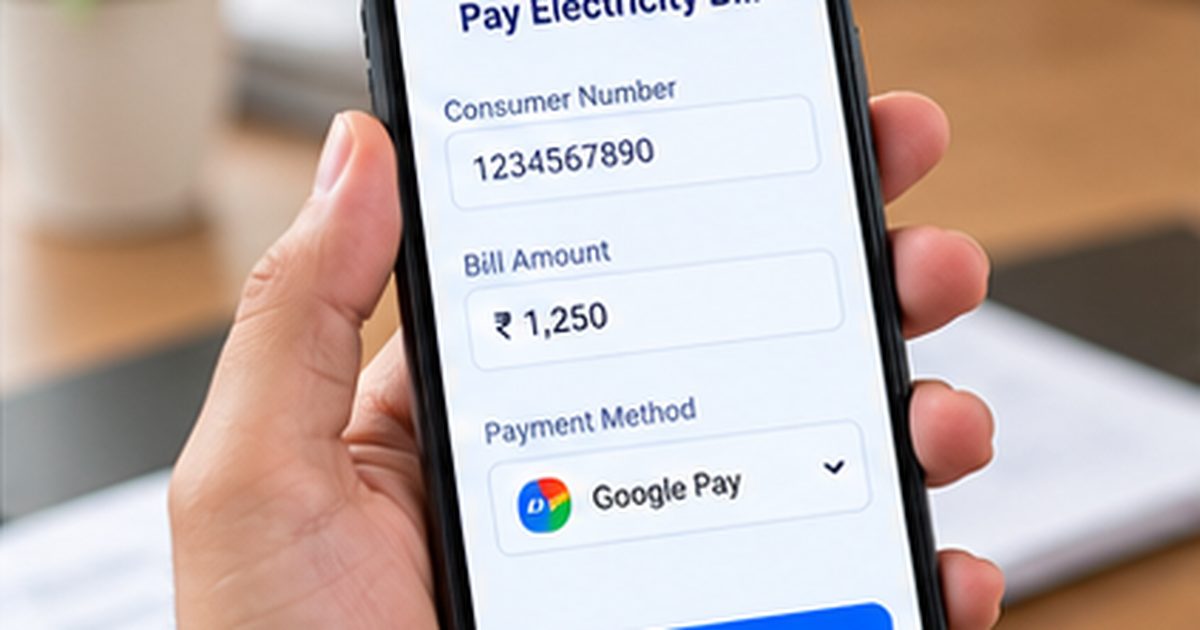
To learn how to pay electricity bill in Google Pay, open the Google Pay app, choose Pay bills, search for your electricity provider, and link the correct consumer account if needed. When an eligible bill appears, confirm the consumer details and amount, select a payment method, and authorize the transaction with your UPI PIN when paying through UPI.
Google Pay supports electricity payments for participating billers in India, but not every DISCOM or account will necessarily appear. This guide explains the payment steps, biller setup, possible fees, receipt checks, and what to do if money leaves your account but the utility does not update the bill.
How to Pay Electricity Bill in Google Pay: Steps
Before opening the app, keep your electricity consumer or account number and a recent bill handy. Connect a supported bank account to Google Pay and make sure your phone can complete the payment verification. Do not use the meter serial number unless the selected biller explicitly asks for it.
- Open Google Pay on your phone and tap Pay bills or the bill-payment section shown in your version of the app.
- Search for the electricity company that issued your bill, rather than choosing a similarly named provider.
- Select the biller and follow the instructions to add or choose your consumer account.
- Enter the requested Customer ID, Consumer No., or Account No. exactly as printed.
- Review the consumer details and the available bill amount, including the billing period if shown.
- Tap Pay bill, choose an available payment method, and review any displayed fees.
- Tap Proceed to pay and authorize UPI payment using your own PIN if prompted.
- Check the transaction result and retain the reference or receipt.
These steps follow Google’s official instructions for paying bills in India. App labels and available payment choices can change. Use the instructions currently displayed by the app rather than relying on old screenshots.
Find and link your correct electricity biller
India has many distribution companies. One state can have several utility service areas, and a city may have more than one provider. Look at the company name and service area on your paper or PDF bill before searching in Google Pay.
When adding a biller, the app may request a customer ID or service number. Google’s help documentation explains that this identifier is usually available on a physical or electronic bill. Once linked, the biller account can be available for later payments without being added again.
If the name, address, or account details shown in the app look wrong, do not proceed. Check your actual DISCOM’s website and confirm the number. Our consumer-number guide explains why the account number and meter serial number may differ.
Check the billed amount before paying
The amount shown in a payment app may reflect the biller data available at that time. If a new statement has been issued, the app’s displayed amount may take time to catch up. Check the provider’s official website when the app amount differs from the latest bill.
Google’s bill-payment guidance says that for some available bills, you cannot manually edit the displayed amount. The app may offer different bill options depending on the biller. Do not try to force a payment amount that the official biller does not support.
Look beyond the current month’s energy charge. A payable total can include arrears, late-payment charges, security deposits, and adjustments. Our arrears and adjustments guide explains why previous balances can affect the payable amount. When a line item is unfamiliar, inspect the detailed DISCOM statement before authorizing the amount.
Which payment methods are available?
The available methods depend on the selected biller, your app setup, and the transaction. UPI payment from a linked bank account is commonly used. Some billers may allow supported debit or credit cards, although not all categories and accounts offer card payments.
Google states that UPI bill payments do not attract its convenience fee, while a convenience fee may apply to credit or debit card bill payments. The company also describes platform fees for certain categories and says applicable fees are shown before payment. Review the actual checkout screen rather than assuming every payment is free.
Never disclose your UPI PIN to a caller, agent, or support account. Enter it only in the genuine payment authorization flow on your own device. A legitimate person receiving a payment does not need your PIN.
How to confirm that payment succeeded
After paying, open Google Pay’s transaction history and check whether the electricity payment shows Success, Pending, or Failed. Save the transaction ID, amount, date, and biller details. Then confirm the utility account’s updated status through its official website or app.
A successful UPI transfer is not always visible immediately in the electricity company’s billing ledger. Google’s help page notes that bill payments may take up to three business days to show up in the account in some cases. For an urgent due date, contact the provider rather than assuming a payment app screen is the only record needed.
If the biller sends a separate receipt, retain it. A bank debit alert can help show funds moved, but it does not by itself explain whether the payment was credited to the intended electricity account.
What if money is deducted but the payment fails?
First check the status of the transaction in Google Pay and your bank statement. Google’s official bill-payment troubleshooting guide explains how to inspect a failed payment, view the refund information, and raise a dispute through transaction history when eligible.
Avoid immediately paying twice unless the bill is genuinely unpaid and the due date makes another attempt necessary. If you must try a new payment, record both transaction references to prevent confusion. Follow the refund timeline displayed for the failed payment.
Never respond to a supposed refund agent asking you to enter your UPI PIN to receive money. A refund should be handled through the payment provider’s authentic support process.
What if Google Pay says Success but the bill remains unpaid?
Open the DISCOM’s own bill status or payment-history section. Compare the consumer number, amount, and transaction date with your Google Pay receipt. A payment can take time to be reflected, and a successful entry should be tracked with its specific reference number.
Google’s help guidance explains how to report a successful payment that the biller has not received. Use the transaction’s Having issues or dispute options if available, and contact the electricity company if its ledger remains unchanged. Save complaint numbers from both sides.
Do not share bank credentials, passwords, or an unmasked payment screenshot in public groups. Submit evidence only to official support channels.
Can you pay another person’s electricity bill?
Many bill-payment services permit payment of a supported biller account with the appropriate customer number. This can be useful when helping a family member, but you should have permission to use their account details. Confirm the connection address and the payment amount before proceeding.
Paying another person’s bill does not change the registered consumer, property owner, or account contact number. Those tasks are separate DISCOM services and may require identity verification.
What if your electricity company is not listed?
Google Pay’s support guidance says that if a biller is not listed, you cannot pay that bill through Google Pay at that time. Do not select a different provider just because its name looks similar. Use the company’s official website or another verified payment channel it accepts.
For example, UPPCL offers an official bill-payment portal for eligible accounts. Other states have their own online services. You can still check a bill on your phone without using Google Pay.
Common mistakes to avoid
Double-check the consumer number, selected utility, service address, and current billing period. Do not rely only on a payment reminder forwarded by someone else. Avoid paying a suspicious link that claims your electricity will be disconnected within minutes.
Keep a private record of successful payments and review the next month’s bill for proper credit. If a payment appears twice or an arrears line remains after payment, ask the DISCOM to reconcile the account instead of guessing what happened.
FAQs About Paying Electricity Bill in Google Pay
Q. Do I need to link the biller every month?
A. Usually no. Once a supported biller account is linked, you can select it again, subject to the app’s account and service status.
Q. Is there a fee for paying by UPI?
A. Google’s India help currently states no convenience fee for UPI bill payments, though certain payment categories can have separately displayed platform fees.
Q. What if the app shows the wrong bill amount?
A. Compare it with the DISCOM’s official statement and contact the biller before paying if the mismatch persists.
Q. Can I cancel a completed electricity payment?
A. Completed payment reversals and refunds are subject to payment status and the biller’s procedures. Use official support instead of assuming an instant cancellation is possible.
Conclusion
Following the right steps for how to pay electricity bill in Google Pay begins with matching the correct biller and consumer account. Verify charges, approve payment safely, and keep the receipt until the DISCOM records the payment.
Disclaimer
This is general educational information for Indian consumers. Google Pay features, supported billers, fees, processing timelines, and provider payment policies can change. Refer to the app’s current checkout information and your DISCOM’s official ledger.